
1. Configuring Your License
The online (paid) version of Rustadmin offers 24/7 monitoring for your Rust server, allowing you to manage it remotely, even when offline. This guide will walk you through configuring your Rustadmin Online license. If you encounter any issues, join the Rustadmin Discord and create a support ticket or message @vfloyd directly.
-
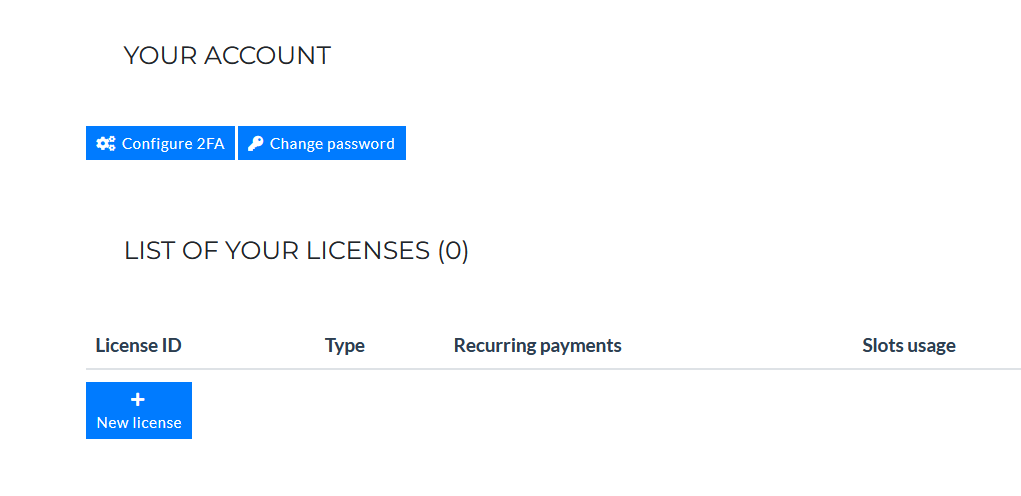
Log into your Rustadmin account and navigate to the license creation page.
-
Click
New License, and you’ll be prompted to choose a payment method. Follow the on-screen instructions to complete the purchase process.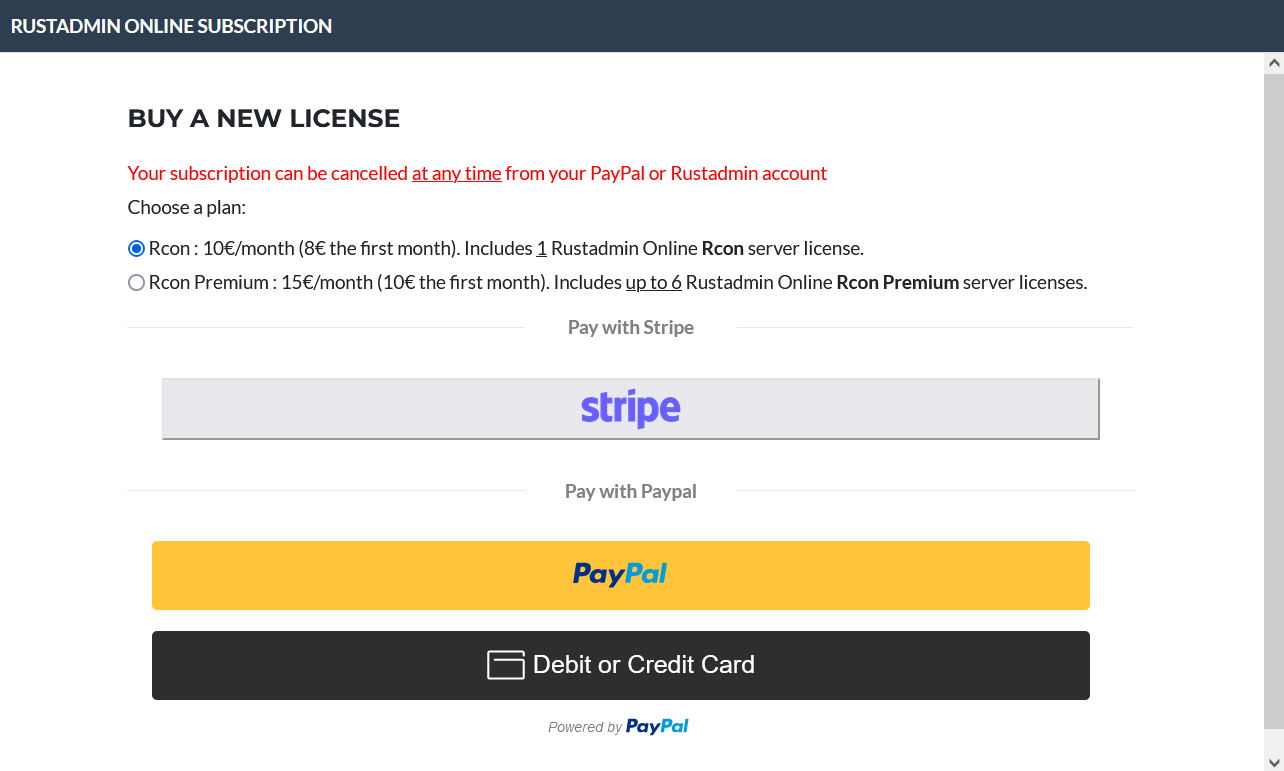
-
Once your license is active, click
New Serverto add your Rust server details.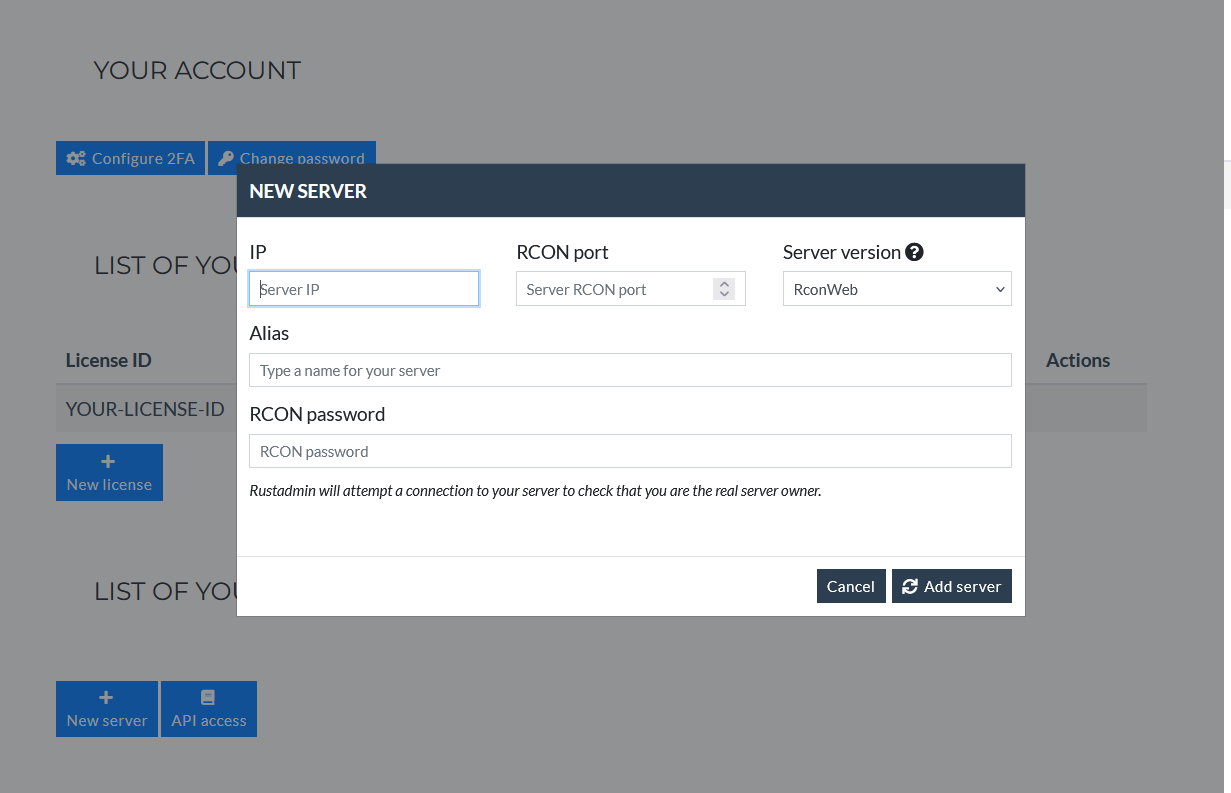
To successfully add your server, you’ll need the following details:
- Server IP Address
- Enter your server’s public IP address; avoid using
localhostor127.0.0.1as they are not valid for remote connections. Ensure that your server is accessible to Rustadmin.
- Enter your server’s public IP address; avoid using
Rustadmin Online connects to your server from IP address46.105.108.189. Ensure this IP can reach your server if firewall settings are applied.
-
RCON Port
- Enter your server’s RCON port. This differs from the game and Steam ports.
- For self-hosted servers, the default RCON port is
28016. For hosted servers, check your hosting provider’s control panel or emails.
-
Server Version
- Set to
RconWebby default, which is appropriate for most setups. You should not need to change this unless specified by your hosting provider.
- Set to
-
RCON Password
- The RCON password secures your connection to the server. For self-hosted servers, locate this password in your server’s startup script (e.g., in LinuxGSM, it’s under
lgsm/config-lgsm/rustserver/rustserver.cfg). - Hosted servers usually provide this password in the hosting control panel or emails.
- The RCON password secures your connection to the server. For self-hosted servers, locate this password in your server’s startup script (e.g., in LinuxGSM, it’s under
After entering the required information:
- Click Add Server.
- If all details are correct, your server will be successfully added to your Rustadmin Online account, allowing you to start monitoring and managing it immediately.
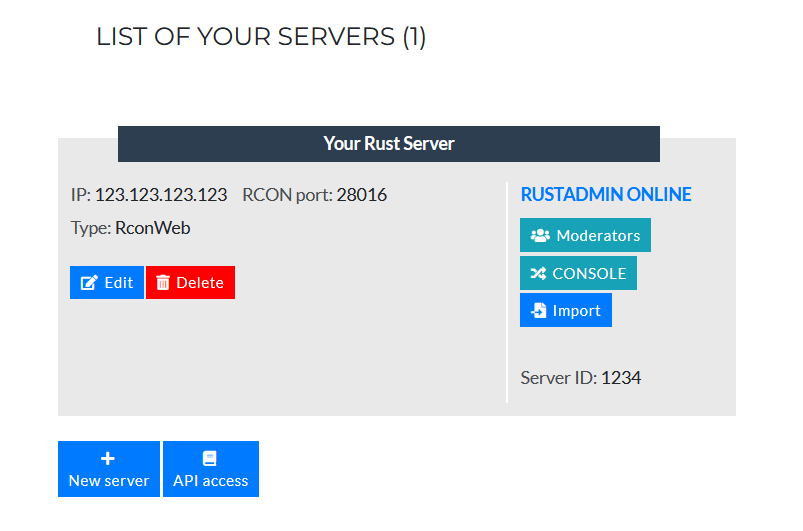
You can now Add Moderators, Access your Console and Import Bans from the free version of Rustadmin to your Rustadmin Online server.