
1. Connecting to Rcon
This document provides a step-by-step guide for connecting to your Rust server using the free version of Rustadmin, a popular Rcon tool for Rust server management. This guide is tailored for Windows 10 but should work similarly on other operating systems.
Before starting, make sure you have the following:
- Rustadmin Free Desktop App downloaded and extracted to a folder on your computer.
- The latest version of the Microsoft C++ Redistributable installed on your computer.
-
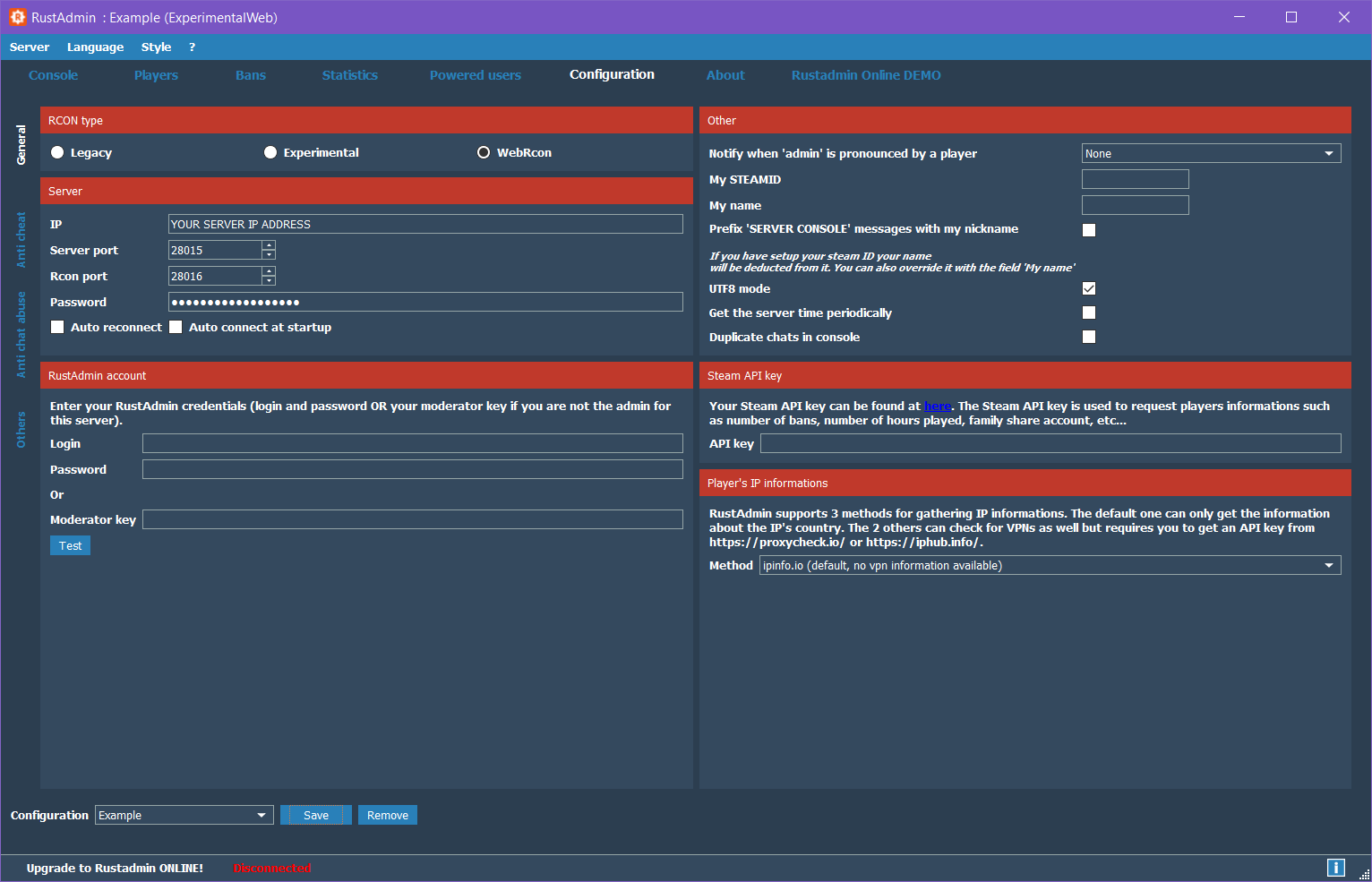
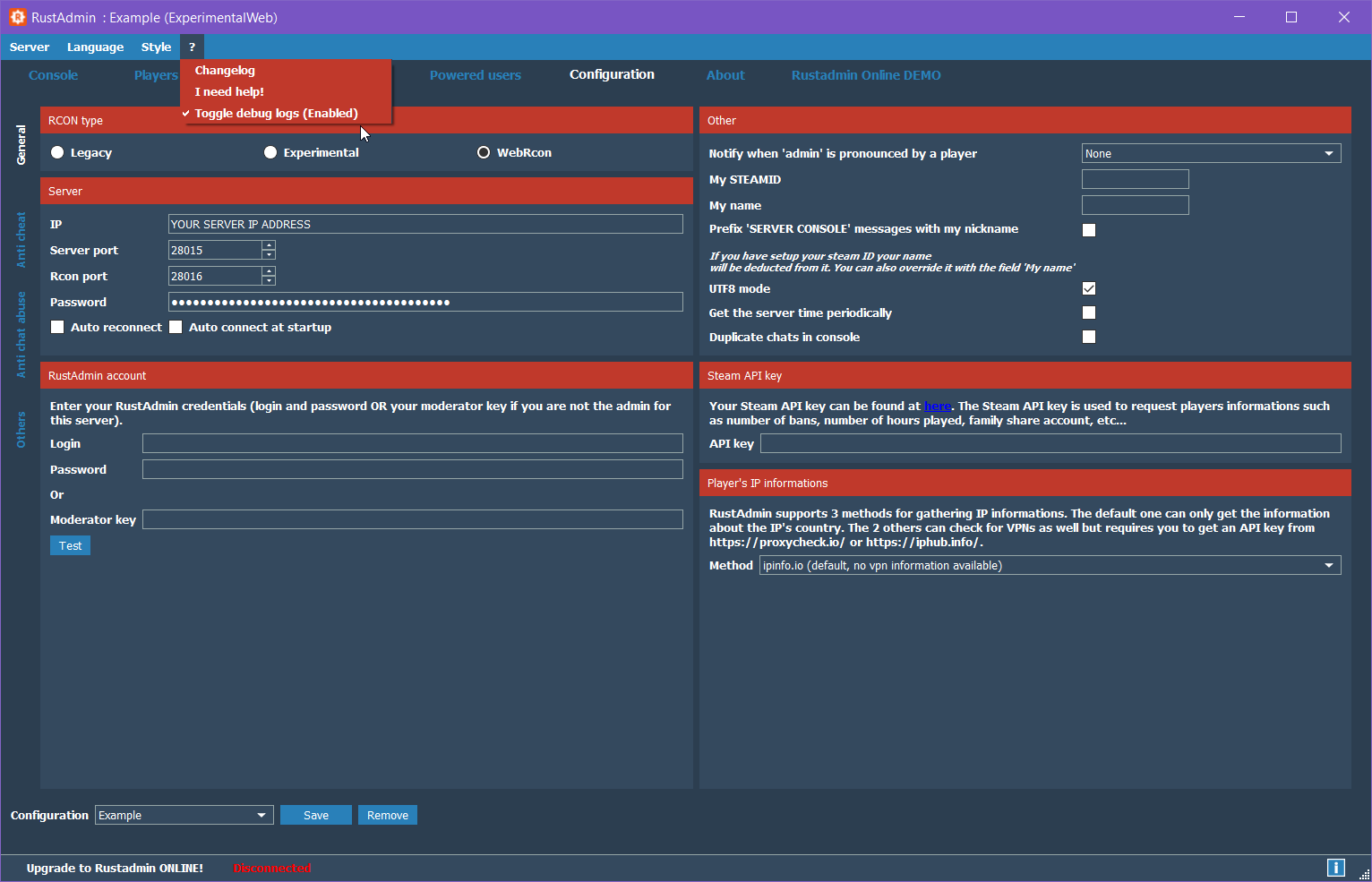
Open the Rustadmin Free Desktop App and navigate to the Configuration tab.
-
Enter the following details:
-
RCON Type
- Leave
WebRconselected (default option).
- Leave
-
Server IP address
- Use
localhostor127.0.0.1if connecting to a local server. For remote servers, enter the public IP address.
- Use
-
Server Port
- Standard Rust server port is
28015. If using a hosting service, check your control panel or emails for the port number.
- Standard Rust server port is
-
Rcon Port
- Default Rcon port is
28016. Check your hosting control panel or emails if using a hosting provider.
- Default Rcon port is
-
Rcon Password
- For self-hosted servers, this is in your server’s startup script (e.g.,
lgsm/config-lgsm/rustserver/rustserver.cfgif using LinuxGSM). Hosting services usually provide this in the control panel or via email.
- For self-hosted servers, this is in your server’s startup script (e.g.,
-
After entering your Rcon details, click “Save” and give your configuration a name. This name will be used to quickly identify and connect to your server.
-
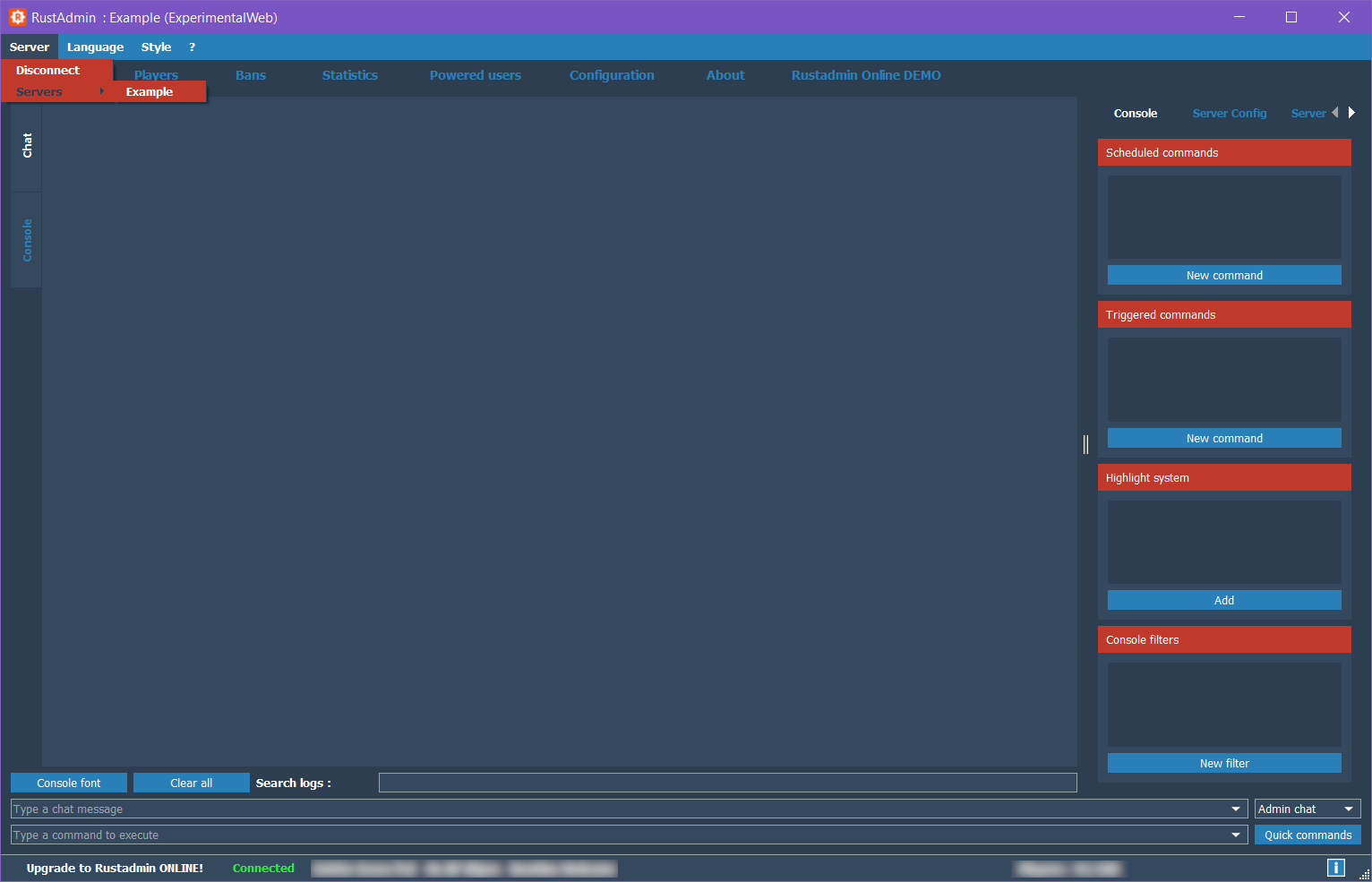
Navigate to the Servers tab and click on the name of the saved configuration.
-
Check the bottom of the Rustadmin window. If it says Connected in green, your setup is complete. If it still shows Disconnected in red, proceed to troubleshooting.
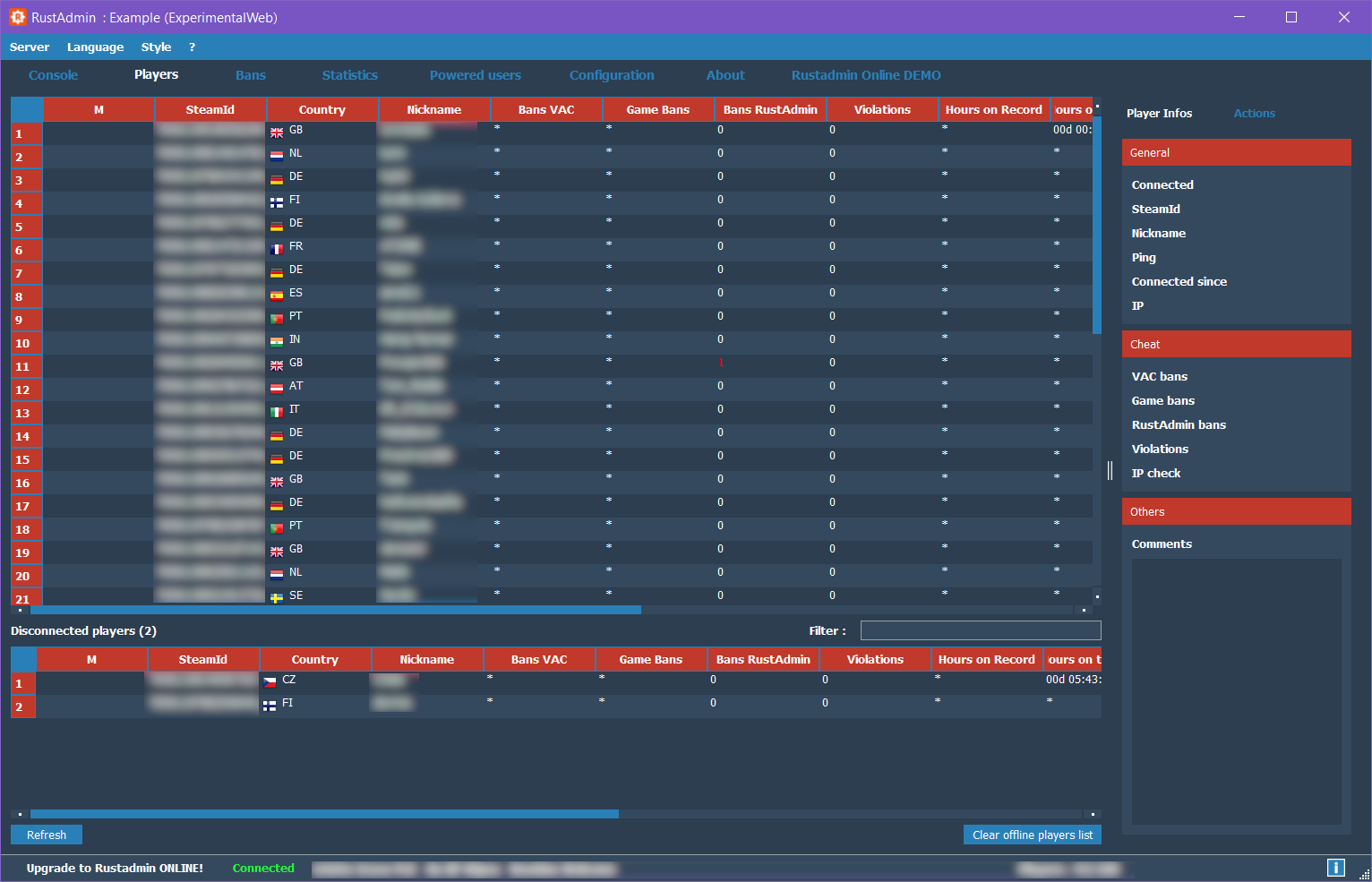
Once connected, you can view the Players tab, showing all currently connected players, their details, and options to kick, ban, or view statistics.
If you’re unable to connect, try the following solutions:
- Ensure you have the latest version of Rustadmin.
- Confirm that you extracted the Rustadmin app to a folder on your computer.
- Verify you have the latest version of Microsoft C++ Redistributable installed.
- Double-check your Rcon details in the Configuration tab.
| Error Type | Log Message | Suggested Solution |
|---|---|---|
| Incorrect Rcon Password | SocketState is UnconnectedState immediately after ConnectingState |
Verify and re-enter Rcon password. |
| Connection Timeout | ClientWebsocket::connectTimeout |
Confirm server IP, port, and firewall rules. |
| Oxide Rcon Conflict | N/A | Ensure Oxide Rcon is disabled in oxide.config.json. |
-
Firewall Settings: Make sure your firewall is configured to allow Rustadmin and Rcon connections.
-
Oxide Rcon Configuration: Disable Oxide Rcon if enabled by setting
"enabled": falseinoxide.config.jsonlocated inserverfiles/oxide.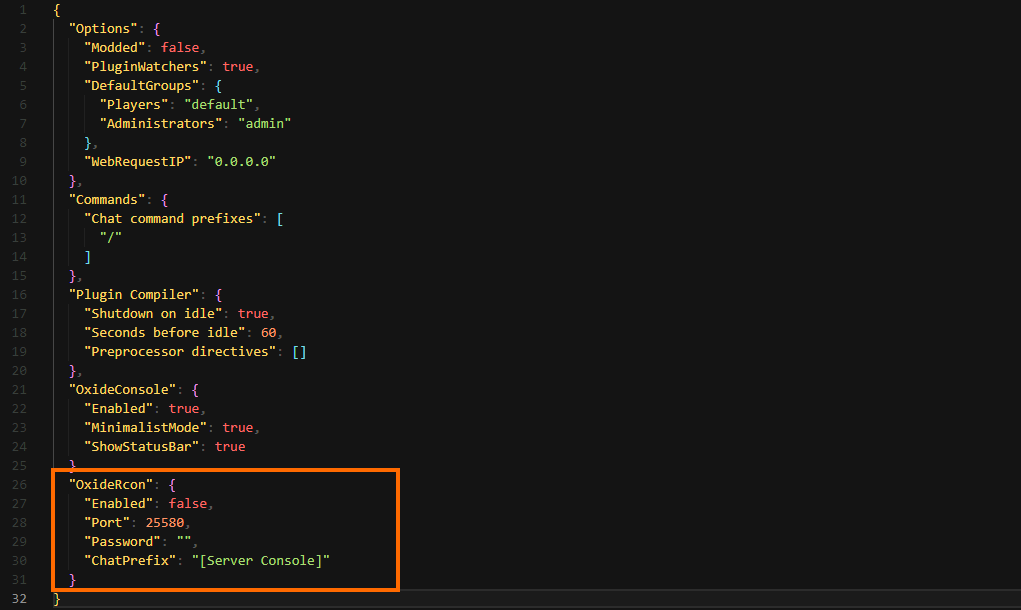
-
Click the ? icon in the top menu, then select Toggle debug logs and restart Rustadmin.
-
Debug logs are saved in the
logsfolder inside the Rustadmin directory. Look for entries likeClientWebsocket::connectToServerandClientWebsocket::socketStateChangedfor connection status. -
If you see:
-
Incorrect Rcon Password: Logs show
QAbstractSocket::ConnectingStatethenQAbstractSocket::UnconnectedStateimmediately, suggesting an incorrect password. -
Connection Timed Out: Logs show
ClientWebsocket::connectTimeout, indicating possible issues with the IP, port, or firewall.
-
For those hosting their own server, here’s an example of a server start script. Avoid unnecessary whitespace and syntax errors when editing:
|
|
Important: Change the default Rcon password (letmein) for security, as Facepunch disallows it by default. The game port is +server.port 28015, and the Rcon port is +rcon.port 28016. For more settings, refer to the Facepunch Wiki.
If issues persist, join the Rustadmin Discord and share your debug log in the support channel or open a new ticket for assistance.
This guide should help you get started with Rustadmin and troubleshoot any initial issues. Let us know if you found this guide helpful or if there are any other steps we should cover!