
2. Adding Moderators
In this overview, you will learn how to add moderators to your server and what each of the options do on the Rustadmin Online website.
- Log into your Rustadmin Online account and navigate to your account page. Click the
Moderatorsbutton to open a panel with a list of current moderators.
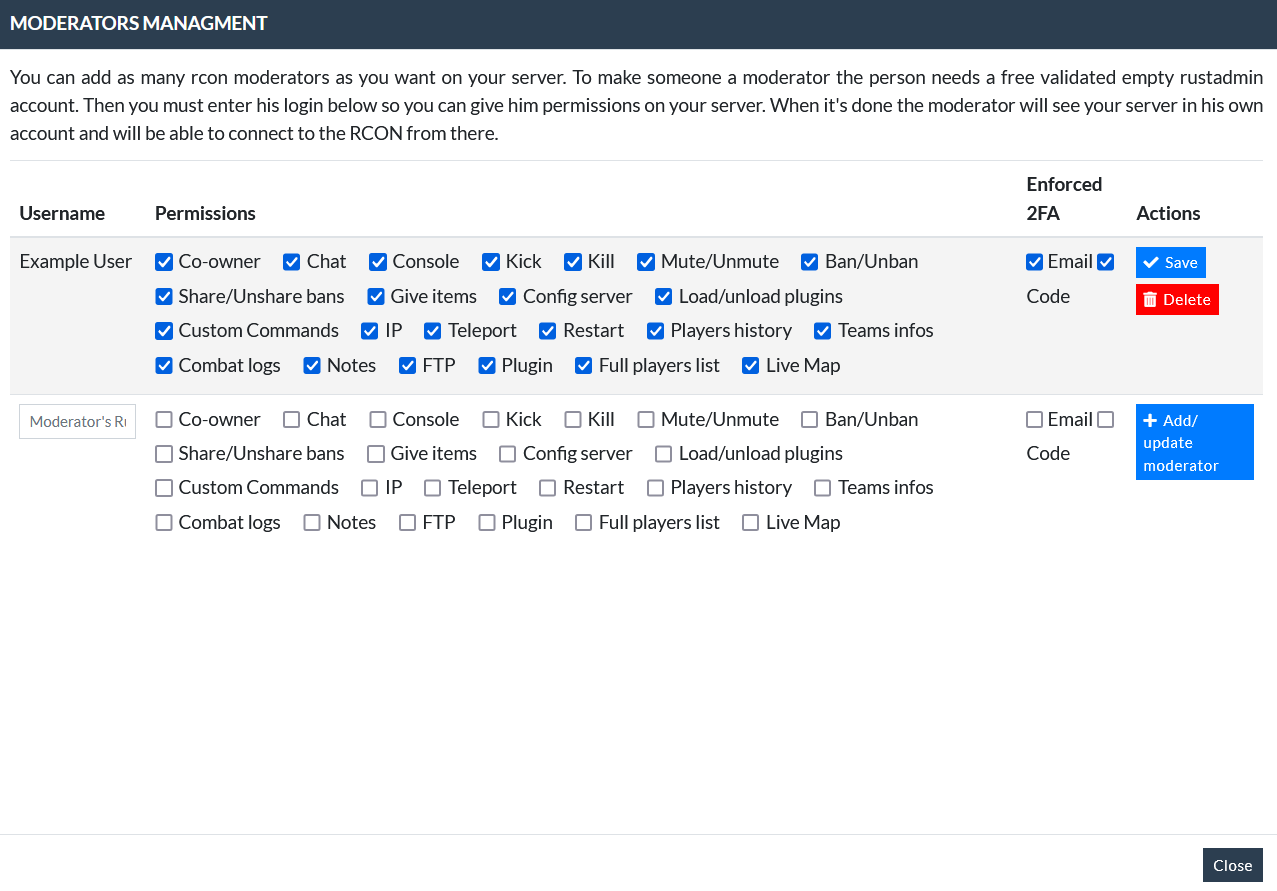
- To add a new moderator, enter their Rustadmin Username into the input field at the bottom and select the permissions you want them to have.
On a desktop computer, hover over each option to see a description of what it does.
You can only update the permissions of one moderator at a time. Once you’re happy with the changes, clickSaveto save them.
- RCON Permissions
- Co-owner
- Grants the moderator the same level of access as the admin.
- Chat
- Allows the moderator to participate in the server chat.
- Console
- Permits the moderator to view console content, which may contain sensitive server information.
- Kick
- Enables the moderator to remove players from the server.
- Kill
- Allows the moderator to terminate players in-game.
- Mute/Unmute
- Lets the moderator silence or unsilence players, regardless of who muted them initially.
- Ban/Unban
- Grants the moderator authority to ban or unban players, regardless of who issued the ban.
- Share/Unshare bans
- Allows the moderator to share or unshare bans, but only bans they have personally shared.
- Give items
- Permits the moderator to give items to any player.
- Config server
- Grants the moderator access to modify server parameters, such as the description or URL.
- Load/Unload Plugins
- Allows the moderator to manage server plugins, including loading, unloading, or reloading them.
- Custom Commands
- Enables the moderator to send any commands to the server, including critical ones like changing the RCON password.
- IP
- Lets the moderator view player IP addresses, a requirement for IP bans.
- Teleport
- Allows the moderator to teleport themselves or other players.
- Restart
- Permits the moderator to restart the server.
- Players History
- Enables access to detailed player information through the “Player’s history” feature.
- Teams Info
- Allows the moderator to see team assignments for players.
- Combat Logs
- Grants access to view detailed combat logs, including kills and deaths.
- Notes
- Enables the moderator to view and add notes to players’ profiles.
- FTP
- Allows the moderator to use the FTP browser for server file management.
- Plugin
- Grants access to the plugin permissions module.
- Full Players List
- Enables the moderator to view the complete list of players with their information.
- Live Map
- Allows the moderator to view the server’s live map.
- Co-owner
Two 2FA options are available to secure moderator accounts. Without 2FA, moderators will authenticate using only their password. While this is simpler, it is less secure. For better security, consider enabling 2FA.
-
Email 2FA
- Moderators will need to enter a code sent to their email address after logging in to Rustadmin Online.
-
Code-based 2FA
- Moderators will need to enter a code sent to their phone using an authenticator app, such as Google Authenticator.
If you enable both Email 2FA and Code-based 2FA, only one method will be required. Moderators can choose their preferred option. If you select only one, moderators must use that method.
Adding moderators to your server on Rustadmin Online does not automatically make them moderators in-game. To grant in-game moderator privileges, use the following command in the server console:
moderatorid <steamid64> <name reference>
Rustadmin Online allows you to share access to your remote console without exposing your RCON password. This is helpful if you want moderators to access the console but keep the RCON password private. However, moderators with console or in-game privileges have access to most server commands, except for changing the RCON password or managing moderators.
Tip: Be cautious about who you grant RCON access to, and ensure you understand the risks of doing so.